Custom brushes
Turn a Pixart asset into a reusable brush mask.
A custom brush is another .pixart asset. Pixart reads the visible shape in its first frame and paints that shape with your currently selected color. The brush's original colors aren't stamped into the destination.
Transparent pixels leave the destination alone. Any nonzero alpha becomes a solid brush pixel, so partial transparency in the source also paints at full strength.
Try a supplied pattern
- Open the sprite you want to paint on.
- Expand the brush group on the right and choose Custom.
- In the asset selector, pick
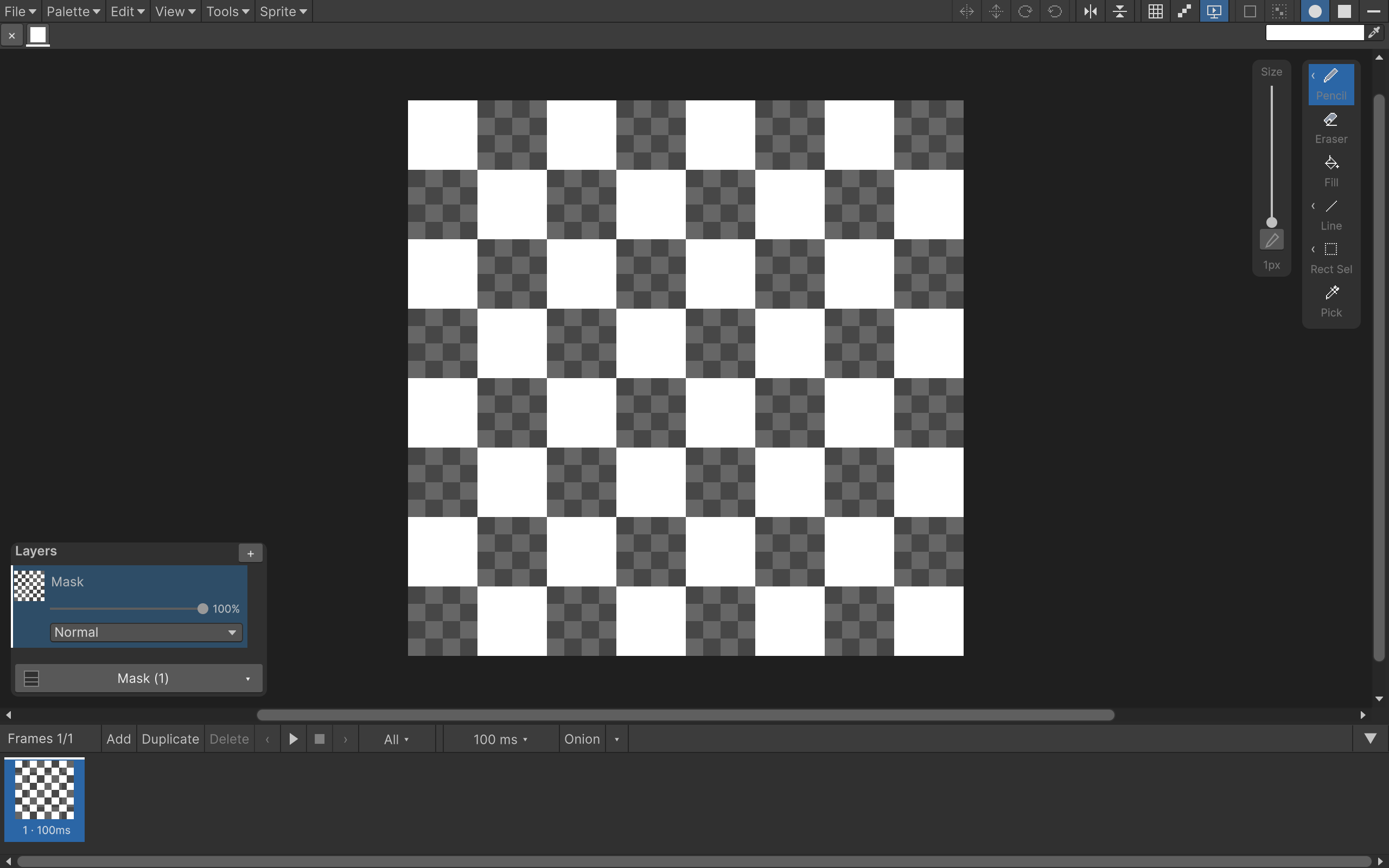
Checker8fromSamples/Brushes. - Select a color in the destination palette and hover over the canvas. The preview should show the checker mask.
- Click or drag to paint.
The picker is also where you switch to another custom brush. Pixart remembers your last choice in the project, including across editor restarts. The brush's own canvas defines its size; the Size slider and tip-shape buttons don't resize it.
Make your own
Create a new sprite named CrossBrush, then use Sprite > Canvas Size… to make it 8×8. Leave the canvas transparent.
With the 1 px Pencil and any opaque color, draw a small plus sign around the center. Save. Open your target sprite, choose Custom again and pick CrossBrush.
The same brush works with any selected color. You can also edit its source asset later. Pixart uses open source-session edits when available, otherwise the saved first frame. A stroke keeps the mask it started with until you release the mouse.
Stamp or tile?
By default, the mask follows the pointer. That's useful for drawing with a small shape.
Enable Tools > Tile Custom Brush to align the repeating pattern to the canvas instead. Now moving the pointer doesn't shift the checker phase. Use this for consistent dithering or patterned areas. A selection is handy when you want to fill only part of the artwork with a pattern.
The supplied brushes are Checker8, Checker16, Dots8, Cross8 and Diagonal8. Custom brushes currently support canvases up to 64×64, and the first frame must contain visible pixels. Hidden layers, transparent colors and zero-opacity layers won't give you a usable mask.