The editor
Where to find the tools, layers, palette and timeline.
Double-click a .pixart asset to open it. To switch documents, double-click another asset in the Project window. Pixart asks what to do with unsaved edits before switching.
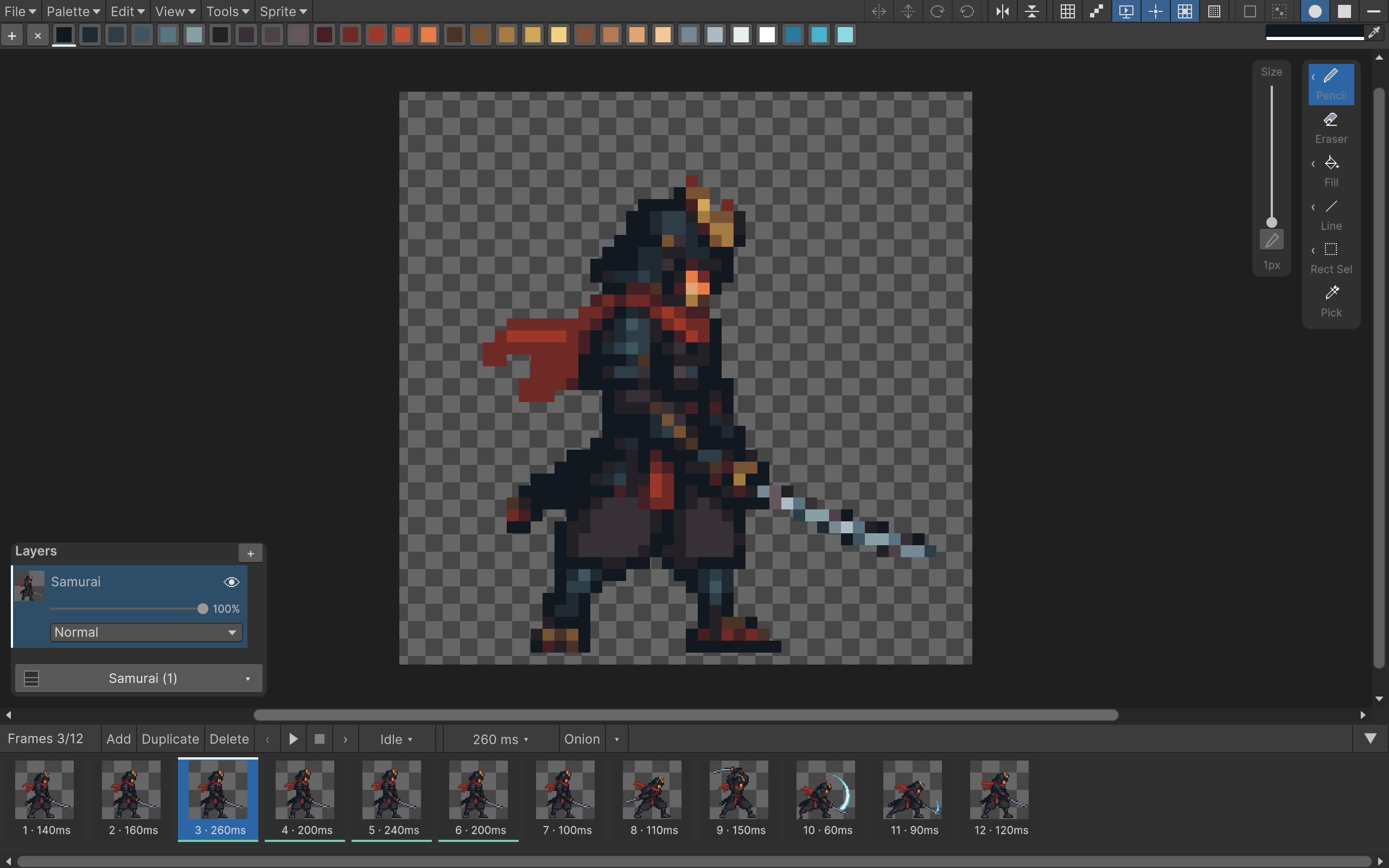
Around the canvas
- Top menu bar: File, Palette, Edit, View, Tools and Sprite. The right side holds selection transforms, mirror toggles, Pixel Grid, Pixel Perfect, Live Preview, Show Cursor, Snap Cursor, Cursor Fill, Filled Shapes, Select All Matching and the three brush tips. Hover an icon for its name.
- Palette row: click a swatch to select a color; + adds a color and opens its picker. The color field and eyedropper are on the right. Editing that field changes the selected slot immediately.
- Right overlay: drawing and selection tools. Some buttons expand into a short row of related tools that opens to the left, above the sliders. Their labels show the last selected tool in that group.
- Size and Power: vertical controls immediately to the left of the tools. Size is enabled for tools that use it; Spray adds Power underneath. Their pen buttons toggle pressure; configure it in Pen Settings.
- Layers: the button at the bottom-left opens the layer list. Fold it when you want more room to draw.
- Frames: thumbnails across the bottom, with add/duplicate/delete, playback, timing and onion-skin controls in the header. The rightmost arrow folds the thumbnails away but keeps the header.
The horizontal and vertical scrollbars belong to the canvas. The frame strip has its own horizontal scrolling.
Which menu?
| Menu | Main actions |
|---|---|
| File | New, Open, Import, Save, Save As, Save Copy, Reload from Disk, Export |
| Palette | Add, reorder or remove colors; import, set, override or save a palette |
| Edit | Undo/Redo, Cut/Copy/Paste, Delete, Select All, Deselect, Flip Horizontal/Vertical and 90° rotations |
| View | Pixel Grid, Live Preview, Show Cursor, Snap Cursor, Cursor Fill, Fit Canvas, Actual Size and Zoom |
| Tools | Pen Settings, Vertical Mirror, Horizontal Mirror, Pixel Perfect, Filled Shapes, Magic Wand > Select All Matching and Tile Custom Brush |
| Sprite | Canvas Size and Create Scene Object |
Menus disable actions that don't apply. For example, selection transforms need selected pixels, and Filled Shapes needs Rectangle, Ellipse or Lasso Shape. Select All Matching needs Magic Select.
Undo and redo work throughout the Pixart window, including after changing layer opacity or another control. While typing in a text or number field, undo edits that field first. Most drawing shortcuts work when the canvas has focus. If you've just typed in a name or number field, click back into the canvas before using drawing shortcuts. The shortcut page is the full reference.
Saving
Save writes the current asset. Save As creates another asset and switches to it. Save Copy creates another asset and keeps you in the original. Use Save Copy when you want a backup or a variant without changing what you're editing.
Reload from Disk discards the current edits after confirmation. Operation messages go to the Unity Console. Recovery behavior and common save problems are covered in troubleshooting.