Samples & palette credits
Props, UI, animated characters and effects, plus brush patterns and palette credits.
Samples live under Assets/InanEvin/Pixart/Samples. You can find the folder from Tools > Pixart > About > Explore Samples as well.
Artwork samples
The seven artwork samples use local palettes. KuroganeSamurai is 48×48, with one Samurai layer, 32 pixels per unit, and a pivot of (0.5, 0.09375) near the feet. The props, button and effects are 32×32, with one Artwork layer, 16 pixels per unit and a centered pivot.

| Asset under Samples | Frames | Playback |
|---|---|---|
Props/Tree.pixart | 1 | Static |
Props/Rock.pixart | 1 | Static |
UI/PlayButton.pixart | 1 | Static |
Characters/KuroganeSamurai.pixart | 12 | Idle: Loop; Attack: Once |
Effects/SparkBurst.pixart | 8 | Burst, Once |
Effects/Explosion.pixart | 10 | Explode, Once |
Effects/SwordSlash.pixart | 7 | Slash, Once |
The asset links above download the editable .pixart files. Save them anywhere under your project’s Assets folder. Create a scene object from the Sprite menu to use a sample with Live Previewer.
Double-click a sample to edit it. For animation, choose the named range in the frame toolbar and press P. Duplicate a sample into your own art folder before editing if you want to keep the original.
KuroganeSamurai
KuroganeSamurai is the package’s promo character: an armored samurai with a katana. Its 12 poses contain four Idle frames with a small vertical breathing motion and eight Attack frames for the wind-up, swing and recovery.
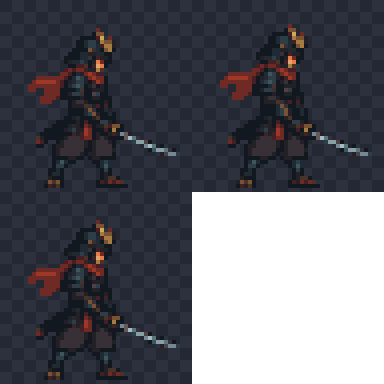
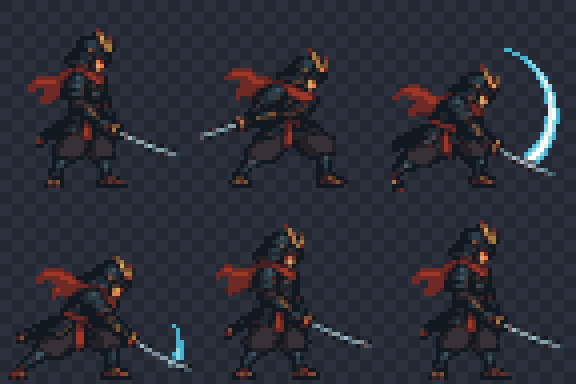
Open Characters/KuroganeSamurai.pixart, choose Sprite > Create Scene Object, and click Add Pixart Animator on Live Previewer. Choose Idle in Start Animation and enter Play Mode. Choose Attack in Start Animation to preview that range, or switch it from code.
The Attack preview above shows the eight attack poses in numbered order. The current package sample has Attack 07 and Attack 08 at the beginning of the timeline, so its saved Attack range currently covers frames 2–7, including Idle poses. To restore the full sequence, move those first two frames after Attack 06. The existing boundaries then give you Idle at frames 1–4 and Attack at frames 5–12.
Once playback holds its final pose; your gameplay code can switch back to Idle when needed.
Effects
The effects use frame timing to move from a quick bright impact to a slower disappearance. Each ends on a fully transparent frame, so Once playback clears the effect instead of leaving its last spark on screen.
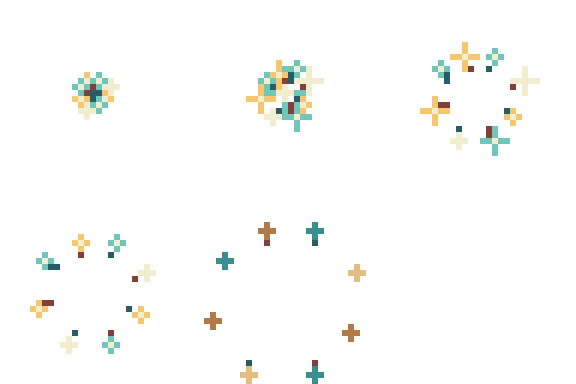
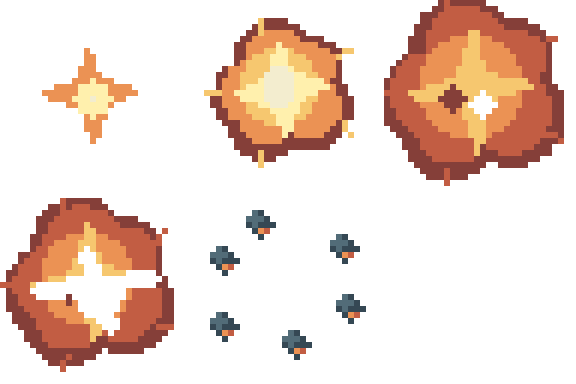

These page previews repeat with a pause. The assets themselves use Once. Restart a range when the effect is triggered again, for example animator.Play("Slash", restart: true).
Artwork provenance
The artwork samples were created for Pixart. KuroganeSamurai replaces the earlier Mosswarden promo character. The downloadable assets on this page match the current sample artwork.
The community palettes below are separate from the local palettes used in this artwork. Their authors and sources are credited individually.
Brush patterns
| Asset | Canvas | Use |
|---|---|---|
| Checker8 | 8×8 | Small checker mask for dithering |
| Checker16 | 16×16 | Larger checker brush footprint |
| Dots8 | 8×8 | Repeating dots |
| Cross8 | 8×8 | Cross-shaped marks |
| Diagonal8 | 8×8 | Diagonal pattern |
Select these through Custom in the brush flyout. They paint with the destination's selected color. See custom brushes for the difference between moving the mask with the pointer and tiling it against the canvas.
Palettes
These palettes come from Lospec's palette list. Credit for the color selections belongs to their authors. The assets preserve the original opaque colors and their order.
| Palette | Colors | Author | Source |
|---|---|---|---|
| Ice Cream GB | 4 | Kerrie Lake | Lospec |
| Endesga 8 | 8 | ENDESGA | Lospec |
| Sweetie 16 | 16 | GrafxKid | Lospec |
| Endesga 32 | 32 | ENDESGA | Lospec |
Pixart adds transparent slot 0, so the assets contain 5, 9, 17 and 33 slots respectively. The extra slot isn't counted as one of the palette's colors. No original color was replaced with transparency. Gallery/example artwork from Lospec isn't included.
Use Palette > Set Palette… to assign one. A document using indices outside the new palette's range needs its colors remapped first; selecting a four-color palette doesn't automatically reduce an existing sprite to four colors.
Tutorial download
Potion.pixart is the 16×16, two-layer, four-frame example used in these docs. It has a Bubble range and uses Pixart's default local palette. Download it into your project's Assets folder to open it with Pixart.
The tutorial starts at Your first sprite and continues in Frames & animation.