Tablets & pen pressure
Use pressure for brush size and spray density, tune the response, and check the input from your pen.
You can draw with a pen using the same tools as the mouse. Pencil, Eraser and Spray can also use pressure to change size. Spray has a separate pressure control for power.
Pressure starts off. Enable it for the tools you want; Pixart remembers those choices separately for Pencil, Eraser and Spray in this project.
Set up a pressure-sensitive pencil
- Select Pencil and set the canvas Size slider to 12 px. With pressure enabled, this is the largest size you'll paint.
- Click the small pen button near the bottom of the Size slider. It lights up when pressure is on.
- Open Tools > Pen Settings…. Choose Pencil, enable Pressure → Size if needed, and set Minimum size to 1.
- Leave Response on Linear for now. Close the window and draw a stroke, starting lightly and pressing harder as you move.
- The stroke grows from 1 to 12 pixels. Change the maximum with the usual Size slider or [ / ].
Sizes stay in whole pixels. Pixart smooths pressure changes briefly and connects the changing footprints between pen samples, so quick strokes don't leave gaps. The canvas outline follows the current footprint.
Spray size and power
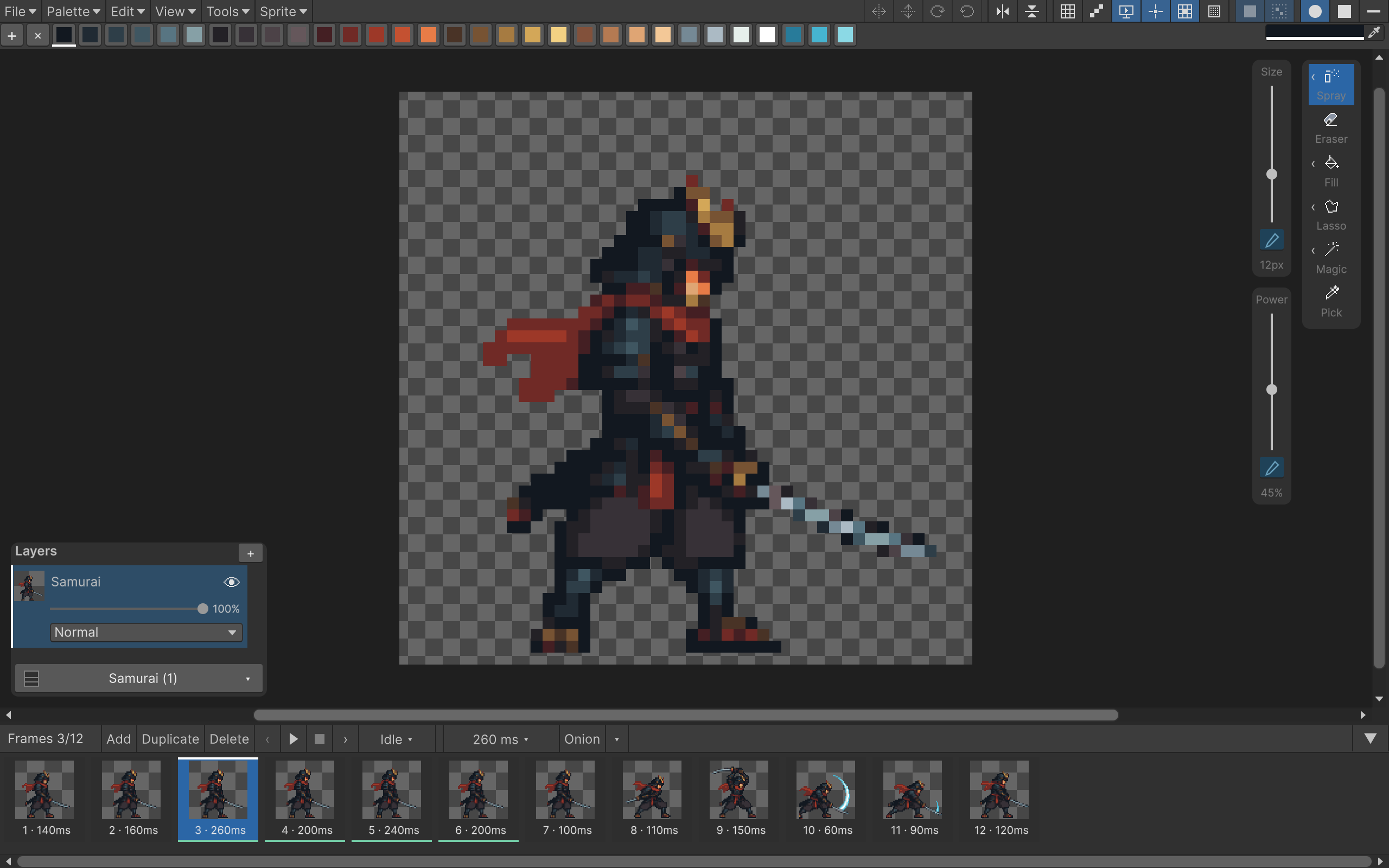
The sliders sit immediately to the left of the tool panel on the right side of the canvas. Spray has a pen button on each slider. You can enable either one or both.
| Pressure control | What changes |
|---|---|
| Size | The width of the spray footprint |
| Power | How many pixels are painted within that footprint |
For a fixed spray area that becomes denser as you press, leave size pressure off and enable power pressure. Try Size 12, Power 60%, and Minimum power 5%. Hold still to build up coverage.
Enable size pressure too if you want a small, sparse mark with a light touch and a wider, denser mark when pressing harder. Both controls use the tool's selected response curve.
Tune the response
Open Tools > Pen Settings… and choose the tool to configure. You can change a tool's settings without selecting it on the canvas.
- Minimum size: the smallest brush footprint, from 1 to 32 px.
- Minimum power: the lowest spray density, from 1 to 100%.
- Soft: reaches larger sizes and higher power with less pressure.
- Linear: follows pressure evenly.
- Firm: keeps size and power lower until you press harder.
The canvas sliders set the maximums. If a minimum is higher than the current maximum, Pixart uses the maximum. For example, Minimum size 4 with Size 2 gives you a fixed 2 px brush; raise Size above 4 to get a range again.
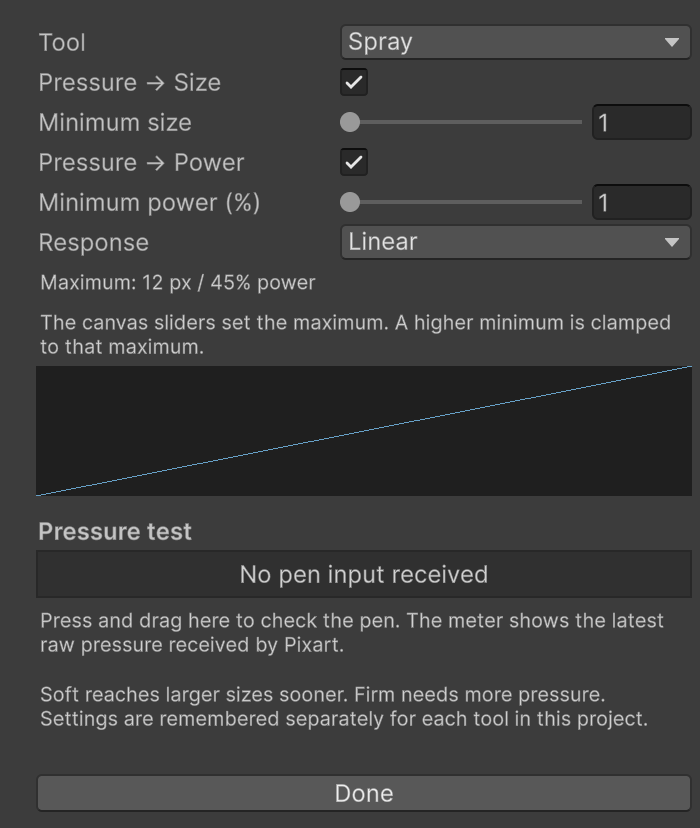
Press and drag over the Pressure test area to check what Pixart receives. You can also leave the window open beside the canvas and watch the latest reading while drawing. Lifting the pen will usually bring the meter back to zero.
Erasing and picking colors
Select Eraser with E and configure its pressure settings independently from Pencil. If your pen has an eraser end and Unity reports it, flipping the pen temporarily selects Eraser. Lifting the eraser or returning to the tip restores your selected tool.
Hold Alt to pick a palette color with the pen, just as with the mouse. Release Alt to return to drawing. Pen side buttons keep their Unity/driver mappings; Pixart doesn't provide a separate button-mapping panel.
What pressure affects
| Tool | Size | Power |
|---|---|---|
| Pencil | Yes | — |
| Eraser | Yes | — |
| Spray | Yes | Yes |
| Custom brush, shapes, fill, selections | Fixed behavior | — |
Circle, Rectangle and Line brush tips all work with pressure. The Line shape tool still uses a fixed size.
Pencil paints the selected palette index; Eraser writes transparency. Pressure doesn't change palette colors or pixel alpha. Spray power controls coverage, not opacity.
Pixel Perfect works when Pencil's maximum size is 1 px. It stays off for a stroke whose size can grow beyond one pixel, even while you're pressing lightly enough to paint a single pixel.
Selection clipping, mirror drawing and multi-frame/layer editing work with pressure strokes. A completed stroke is one undo step. Escape cancels it before release.
If pressure doesn't change anything
Start with the meter in Pen Settings.
- No pen input received: Unity hasn't delivered a pen event to Pixart. Press and drag in the test area. Check that your tablet driver recognizes Unity and isn't configured to emulate only a mouse.
- Always 100%: Unity may be receiving a pen without pressure data. Check the tablet driver's pressure test and its application settings for Unity.
- The meter changes, but the brush doesn't: enable the pressure toggle for the selected tool, then make sure its maximum is larger than its minimum. A 1 px maximum cannot get any smaller.
- Pressure works in another drawing app only: check the driver's Unity-specific settings. Restart Unity after changing the tablet input mode or installing a driver update.
Mouse input uses the fixed slider values. Devices that report no pressure through Unity use those maximum values too. Pixart reads Unity's editor pen events; it doesn't need an Input System package or a tablet plugin. Unity documents the pressure values in Event.pressure.