Runtime playback
Start an animation in the Inspector or switch it from code.
Pixart Animator plays the frames in the asset assigned to Pixart Live Previewer without an Animator Controller. Each instance has its own playback cursor, so several characters can use the same source without sharing the same animation state.
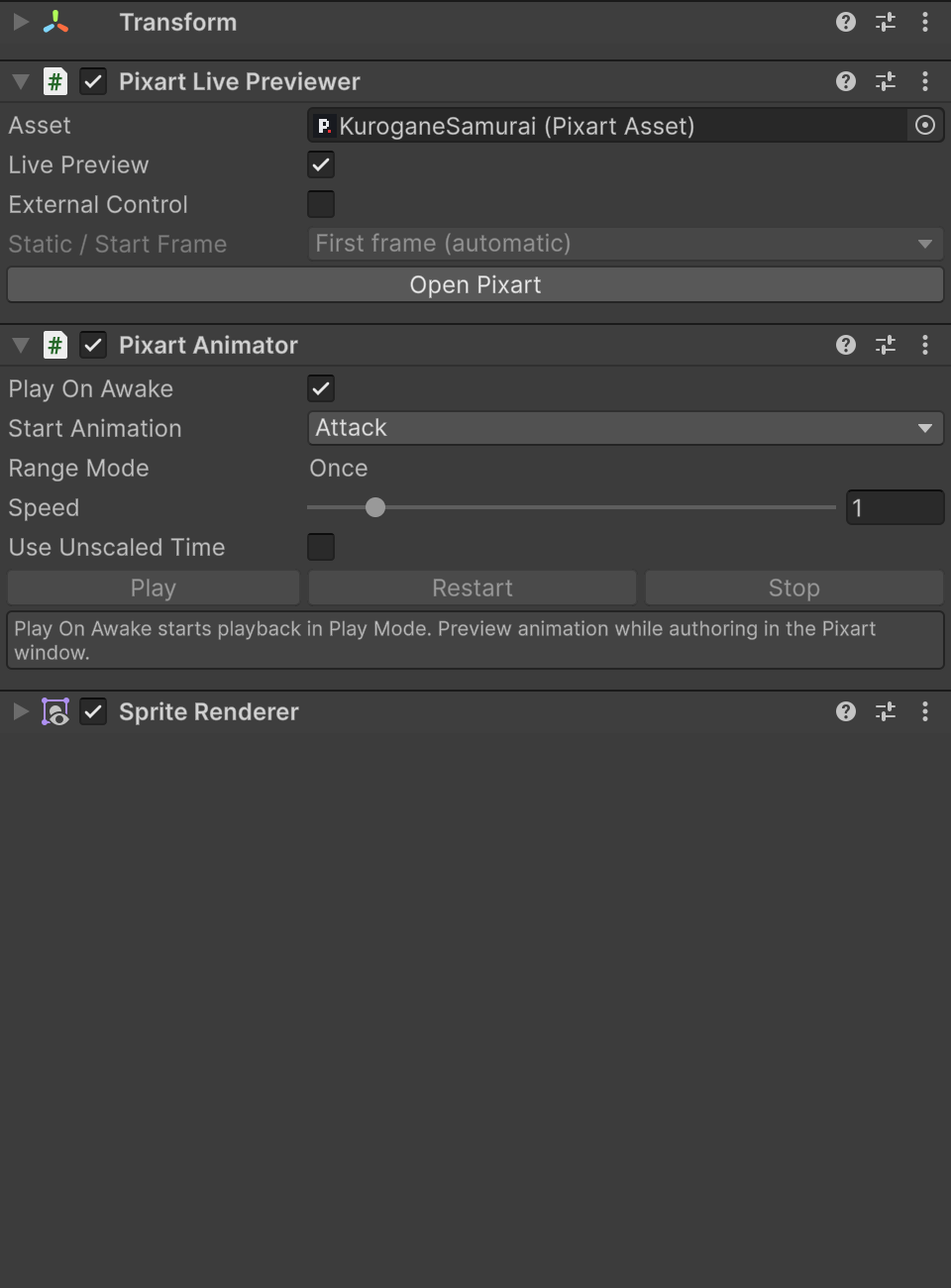
Start from the Inspector
- Assign your
.pixartasset to Pixart Live Previewer. - Click Add Pixart Animator, then choose Start Animation on that component, for example
Attackon KuroganeSamurai orBubbleon the tutorial potion. - Enable Play On Awake.
- Enter Play Mode.
A named animation uses its saved Loop, Once or Ping-pong mode. With All Frames selected, the component's playback mode applies instead. Speed changes the rate without modifying frame durations. Use Unscaled Time keeps it independent from Time.timeScale.
Play On Awake is on by default on newly added Pixart Animator components. Turn it off when gameplay code should decide when to start. Live Previewer can also be used on its own for a static sprite.
Switch animations from code
All runtime classes use IE.Pixart. Here's a small component that plays KuroganeSamurai’s Idle and Attack ranges. Call Attack from your input or gameplay code, then ReturnToIdle when you want the breathing loop again.
using IE.Pixart;
using UnityEngine;

[RequireComponent(typeof(PixartAnimator))]
public sealed class CharacterArtwork : MonoBehaviour
{
    private PixartAnimator artwork;

    private void Awake()
    {
        artwork = GetComponent<PixartAnimator>();
    }

    private void Start()
    {
        artwork.Play("Idle");
    }

    public void ReturnToIdle()
    {
        artwork.Play("Idle");
    }

    public void Attack()
    {
        artwork.Play("Attack", restart: true);
    }
}
Play("Idle") switches to Idle, or resumes it if Idle is already selected. It doesn't restart an unfinished animation on every call. A completed Once animation starts again. Pass restart: true when you need to start from the beginning.
An unknown name returns false and leaves the current playback alone. Names ignore case. A Once animation holds its final frame when finished; it doesn't automatically switch back to Idle. Your gameplay code decides what to play next.
Useful calls
| API | Use |
|---|---|
Play() / Play(restart: true) | Resume or restart the current sequence |
Play("Idle") | Select and play a named animation; returns success |
Play("") | Play All Frames |
Pause() | Pause at the current frame and elapsed hold |
Stop() | Pause and return to the configured start frame |
CurrentFrameId | Read the displayed frame identity |
CurrentAnimationName | Read the active named animation |
IsPlaying | Check whether Pixart playback is running |
Speed, UseUnscaledTime | Adjust playback rate and time source |
Assigning another Asset on Live Previewer resets the cursor. PixartAnimator.Asset forwards to that same property. Call Play after the assignment if you want the new asset to animate. Asset animation definitions are available through AnimationCount, GetAnimation(index) and TryGetAnimation(name, out range).
Animator or another script owns the sprite
Enable External Control on Live Previewer if a Unity Animator or your own script writes SpriteRenderer.sprite. Pixart then pauses its playback and leaves that property alone. This also disables its live preview for that object.
Turning External Control off gives ownership back to Pixart, but doesn't automatically resume playback. Call Play when you're ready.
Disabling Pixart Animator leaves Live Previewer showing its configured static frame. Disabling Live Previewer suspends playback until it is enabled again.
For a normal Unity Animator workflow, export AnimationClips. No Pixart component is needed for those clips.