
Exporting
Create PNG sprites, sprite sheets, AnimationClips and an Animator Controller.
Choose File > Export… inside Pixart. It opens a separate window where you choose the format, frames and destination. The window stays tied to the source that opened it, even if you switch to another sprite in the main editor.
Export a single sprite
For the potion tutorial:
- Select the frame you want in Pixart.
- Open Export and choose Single Sprite PNG.
- Set Output Name to
Potionand choose an existing folder underAssets, such asAssets/Art/Exported. - Click Save and Export.
- Find the PNG in the Project window. It is already imported as a Unity Sprite; drag it into a scene or assign it to a SpriteRenderer.
Single Sprite exports the frame selected when you opened the window. Frame Range is disabled for this format. It doesn't use the timeline's multi-selection.
Export a sprite sheet
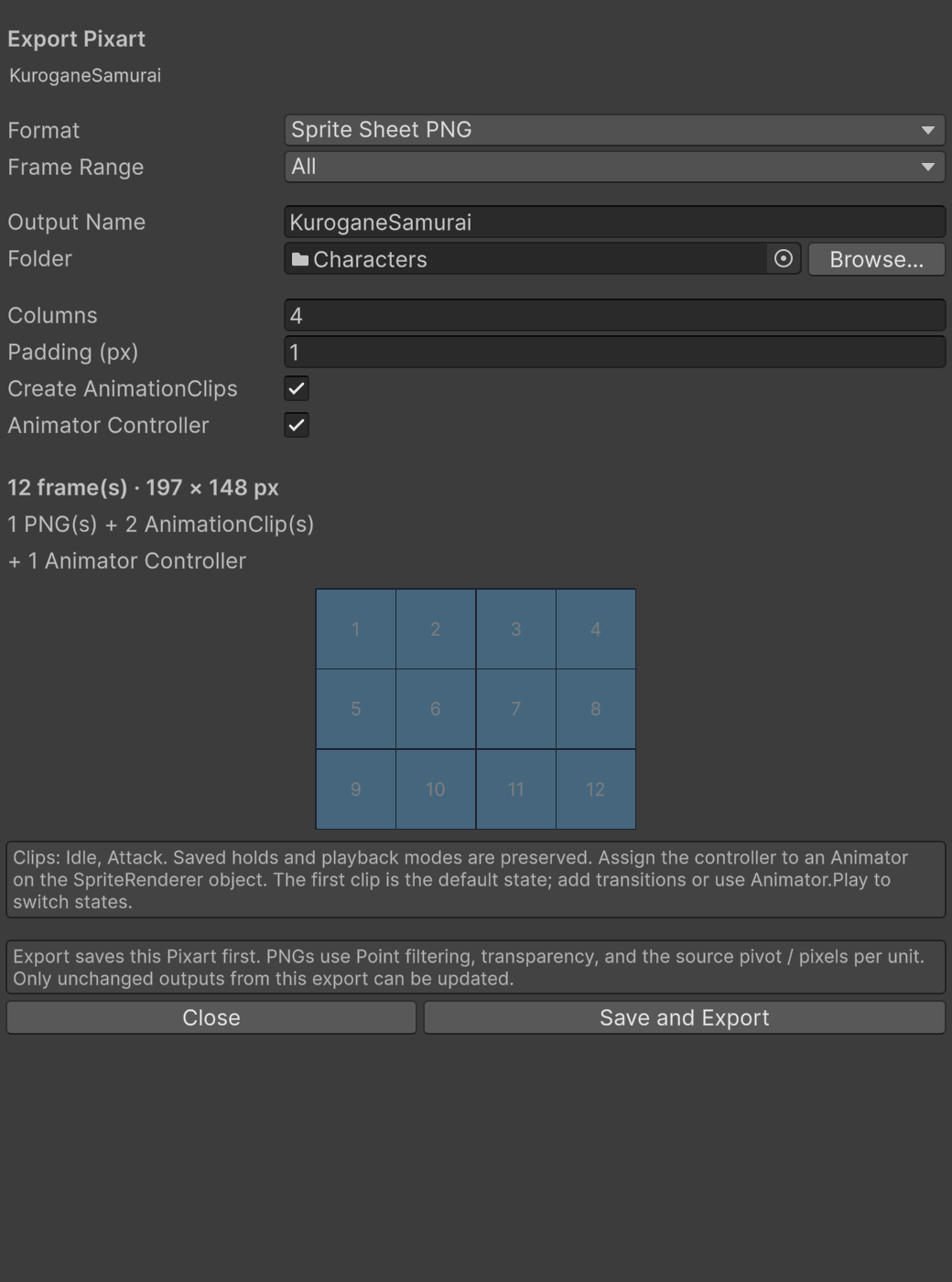
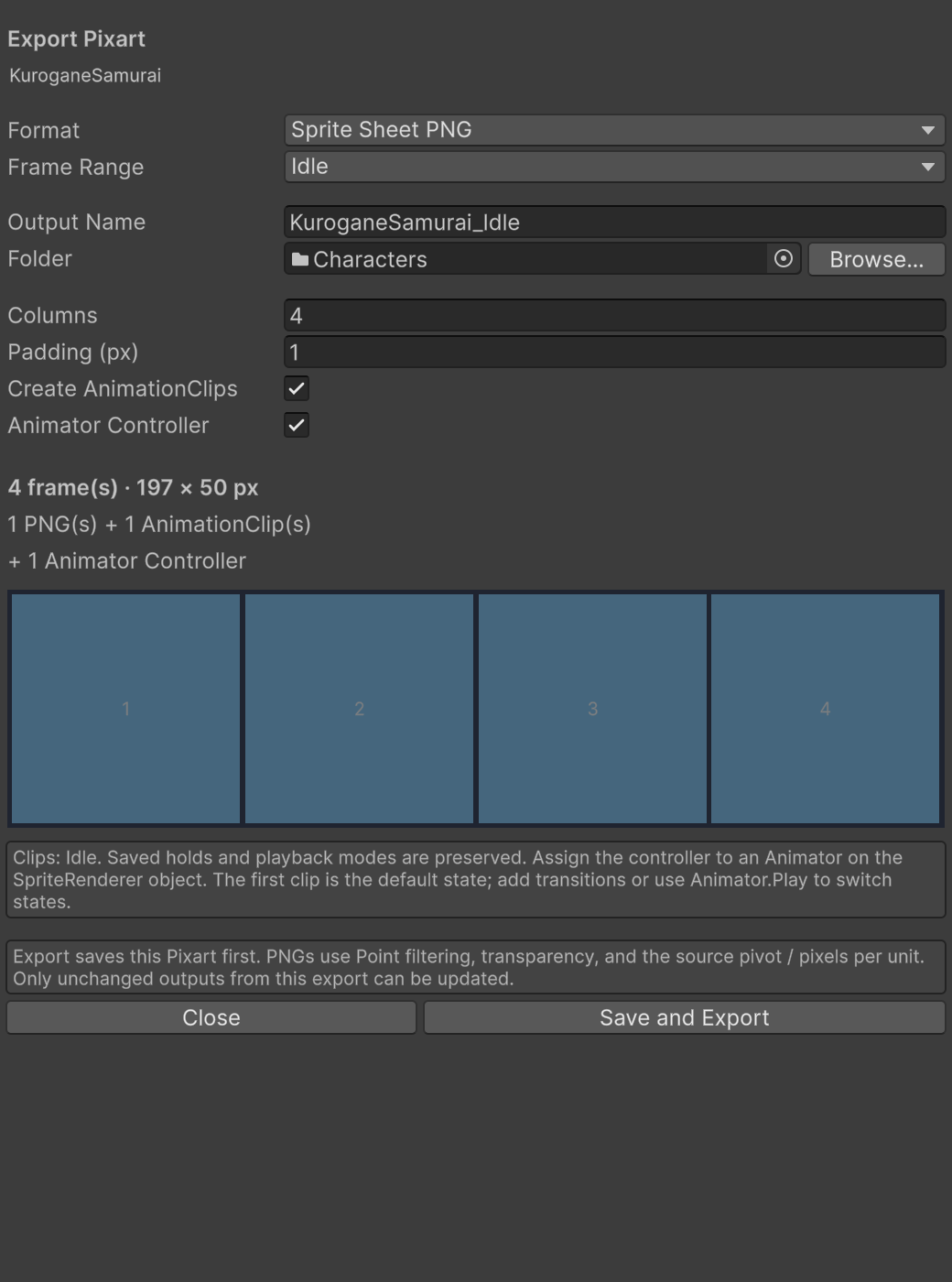
Choose Sprite Sheet PNG. The Frame Range dropdown defaults to All whenever you open Export, even if a range is selected in the editor. Choose a named range, such as Idle or Attack, to export only its frames, or choose Current Frame for the frame selected when you opened the window. The preview updates to show that choice’s frame count, dimensions and layout. Set Columns and Padding to arrange the sheet. Frames run left-to-right, then top-to-bottom; padding is transparent and outside each Sprite's bounds.
For KuroganeSamurai's four-frame Idle animation, choose Idle and 4 columns for one row. Pixart slices the resulting texture automatically, so you don't need to open Unity's Sprite Editor and recreate the rectangles by hand.
Use Separate Frame PNGs if you want one full-canvas PNG per frame instead. It has the same frame-scope choices and can also generate clips.
The suggested Output Name changes with the scope, for example KuroganeSamurai_Attack. If you type your own name, changing the range keeps it. If a chosen range is deleted while Export is open, select an existing range or All to continue.
Export AnimationClips
Enable Create AnimationClips for sheet or separate-frame exports.
- All: creates one clip per named range. If the asset has no ranges, it creates an AllFrames looping clip.
- Named animation: creates that range's clip.
- Current Frame: creates a nonlooping pose clip.
Frame holds, including the final hold, are preserved. Loop and Ping-pong produce looping clips; Once doesn't loop. Ping-pong includes the return journey without repeating the endpoints.
Export an Animator Controller
Enable Animator Controller in Export. This also enables AnimationClips and creates <name>.controller beside them. Each exported clip becomes a state in the Base Layer. The first clip is the default state.
For KuroganeSamurai:
- Choose All, so Idle and Attack are both included.
- Enable Animator Controller, choose the output folder and click Save and Export.
- Add a SpriteRenderer and a standard Unity Animator to the same GameObject.
- Assign the exported controller to the Animator. Idle plays by default.
- Add transitions in Unity, or use
animator.Play("Attack", 0, 0f)to start Attack. Return to Idle when your gameplay calls for it.
State names follow the animation names. Dots become underscores; names that collide after that change get numbered suffixes. Pixart doesn't add gameplay transitions.
The clips reference exported PNG Sprites and work without Pixart components. If the object also has Pixart Live Previewer, enable External Control so the Unity Animator owns its Sprite property.
If you've customized the generated controller, turn off Animator Controller when re-exporting. Leave Create AnimationClips enabled to update the clips while keeping your states and transitions. Their clip references stay connected.
Saving and re-exporting
Save and Export first saves the source, including a floating selection, then generates the output. Opening or configuring the window doesn't save anything by itself. If an export is cancelled after source saving, the source can already be saved even though output files weren't changed.
Exports use Point filtering, no mipmaps and uncompressed textures, with the source's PPU and pivot. They contain the final visible composite, including layer opacity/blending and palette colors.
Sheet and separate-frame exports create a .pixart-export.json sidecar. Keep it beside the output. It records identities and ownership so re-export can update existing files without breaking their GUIDs and Sprite references. Controller and retained state identities also survive re-export.
Re-export with the same name, folder, format and frame scope to update an output. Use another name if you're changing format or scope. Pixart refuses to overwrite unrelated files or externally modified outputs. Check the Console for the conflict, or export under a new name.
Old separate-frame PNGs, clips or controllers may remain when frames/ranges are removed, to avoid deleting referenced assets. Removing a previously exported Sprite from an existing sheet is rejected; export the reduced sheet under a new name.
Limits
A sheet can be at most 4096 pixels per side and 4,194,304 pixels total, with 1–256 columns and 0–32 px padding. If a large animation doesn't fit, export a smaller range or use separate frames.
There is no GIF export, automatic atlas paging or trimming in the current package.